Finding a Patient
Use the patient list to locate a patient and open their record.
Click in the Search patients... box in the upper-right corner of the LDA Patients page.
Type all or part of the patient's name or Patient ID.
Filter the search results by the patient’s gender, date of birth, etc.
Review the matching patients in the table.
Field / Column
Description
Patient ID
The patient's identifier in the archive.
First Name
The patient's first name.
Last Name
The patient's last name. The list is sorted by this column.
Patient Summary
Shows Yes or No.
DOB
The patient's date of birth.
Gender
The patient's gender.
Location
The city, state, and ZIP code on file for the patient.
Last Date of Service
The patient's most recent date of service.
Click Details in the patient's row to open their record.
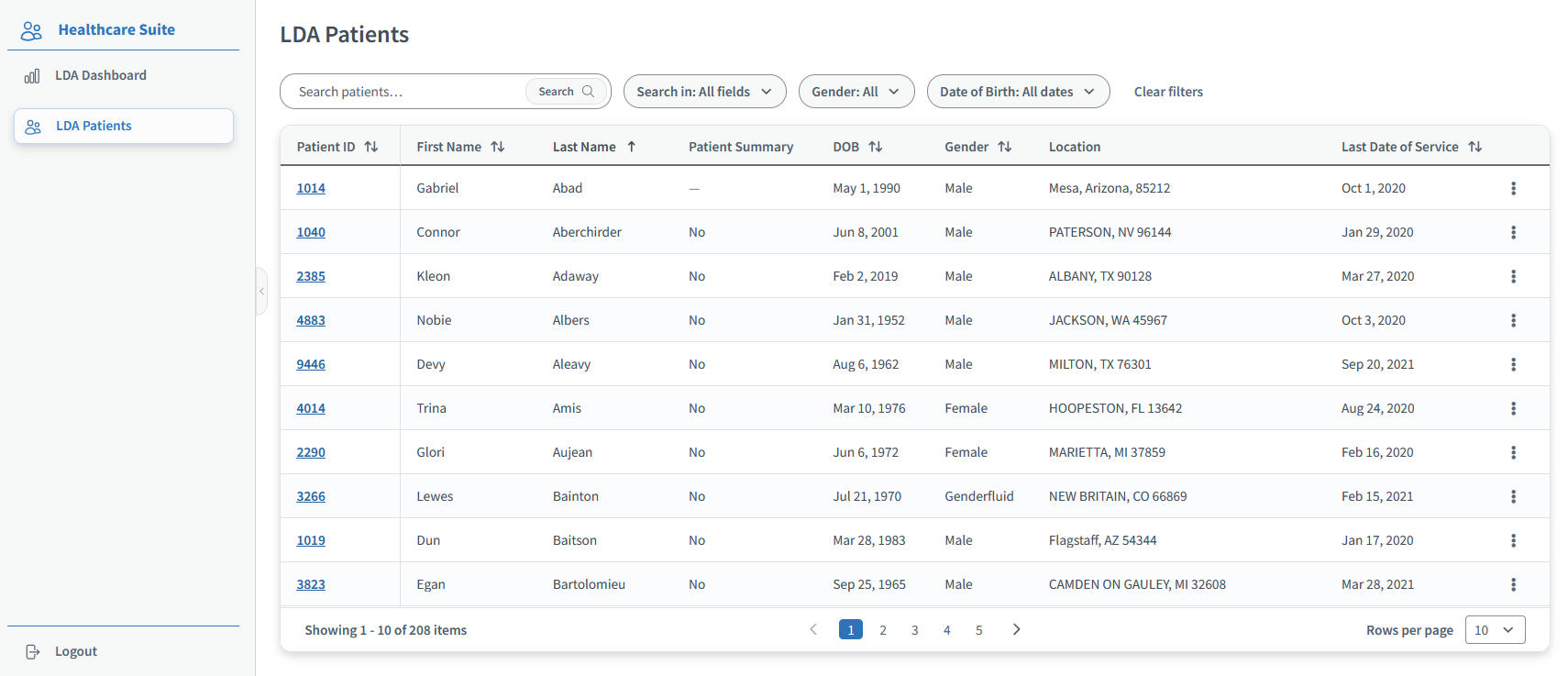
To browse without searching, use the Rows per page menu and the page buttons at the bottom of the table. Click the refresh icon next to the page title to reload the list.
🔍 Troubleshooting Note: If a patient you expect doesn't appear, check the spelling and try searching by Patient ID. Patients who have archived documents but no Master Patient Form record are added to the list by a scheduled overnight process, so a patient whose documents were archived today may not appear until the next day. If the patient still doesn't appear, contact your administrator.
Need help?
If you are unable to log in to or if you encounter an issue within the application, please submit a ticket in our Support Portal.