Reviewing Patient Details
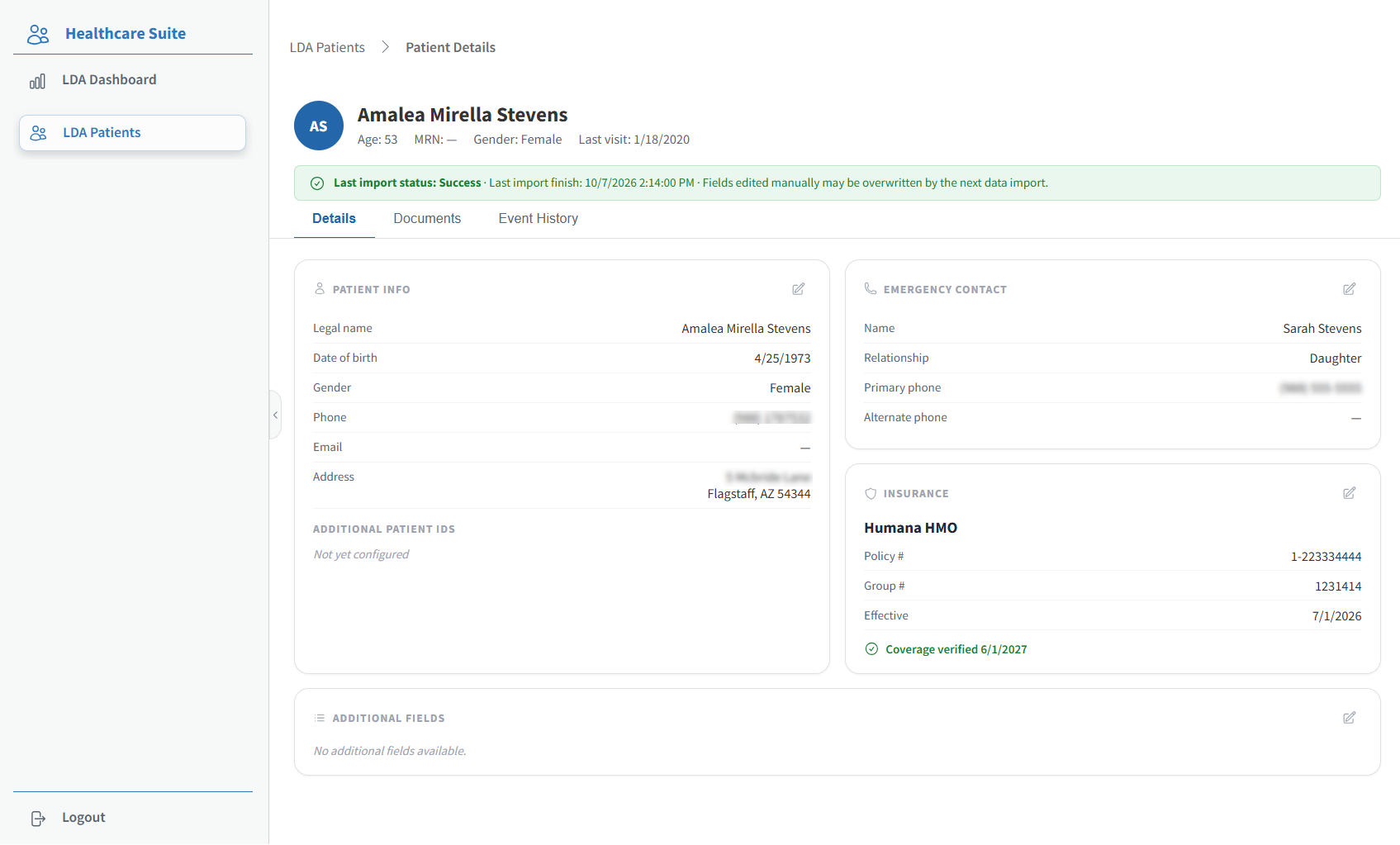
The Details tab opens by default when you open a patient's record. It shows the patient's identifying, contact, and insurance information.
Review the patient header at the top of the record. It shows the patient's name, Age, MRN, Gender, and Last visit, and it stays visible on every tab.
Review the import status banner below the header.
a. A green banner reads Last import status: Success and shows the date and time of the last import.
b. An amber banner indicates the last import had errors. The record shows the most recent data that imported successfully.Review the information cards on the Details tab.
Card
Description
Patient Info
Legal name, Date of birth, Gender, Phone, Email, and Address. These values are refreshed from the patient's Master Patient Form record each time you open the record.
Additional Patient IDs
Identifiers for this patient in other systems. Shows Not yet configured when none have been added.
Emergency Contact
The patient's emergency contact. Entered manually; never overwritten by an import.
Insurance
The insurance provider, Policy #, Group #, and Effective date. A green Coverage verified badge appears when coverage was verified within the last 365 days; a red badge appears when the verification is older. No badge appears if coverage has never been verified. Entered manually; never overwritten by an import.
Additional Fields
Extra patient fields your administrator has chosen to display. Shows No additional fields available. when none are configured.
Editing Patient Details
You can update a card when the patient's information is missing or incorrect.
Click the edit icon in the upper-right corner of the card you want to change. An edit window opens with the card's current values filled in.
Update the fields you need to change.
Edit Patient Info
Field
Description
First name, Middle name, Last name
The patient's legal name.
MRN
The patient's medical record number. Appears in the patient header.
Date of birth
Type the date or click the calendar icon to select it.
Gender
The patient's gender.
Phone
The patient's phone number.
Email
The patient's email address.
System status
The patient's system status. This value doesn't appear on the Patient Info card.
Address line 1, Address line 2
The patient's street address.
City / State / ZIP
The city, state, and ZIP code, entered in one field.
Additional Patient IDs
Identifiers for this patient in other systems. Click + Add ID to add one.
Click Save to apply your changes, or click Cancel to close the window without saving.
The system records each changed field as a Field updated entry on the Event History tab.
🔍 Troubleshooting Note: If your change disappears, it is likely that the next data import replaced it. The change and the overwrite both appear on the Event History tab.
Need help?
If you are unable to log in to or if you encounter an issue within the application, please submit a ticket in our Support Portal.