Working with Patient Documents
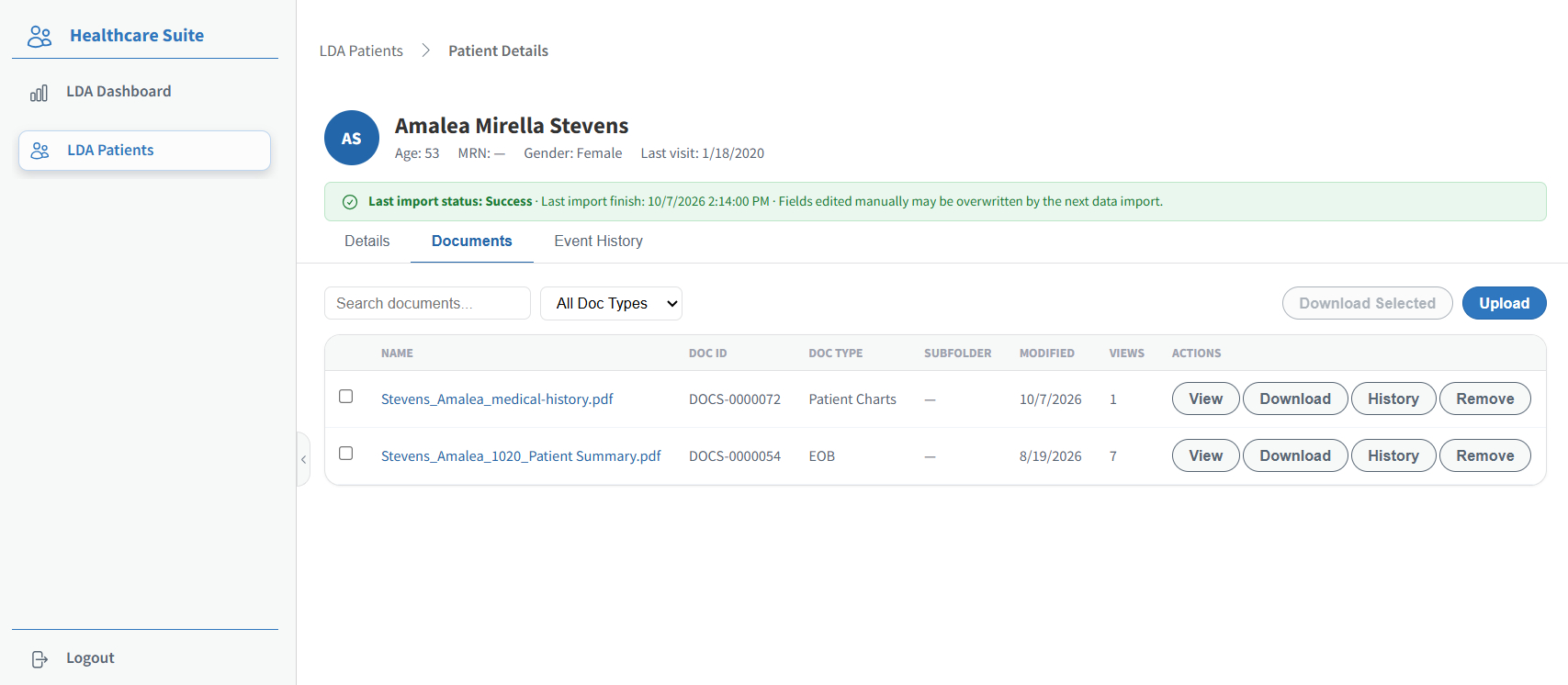
The Documents tab lists every archived document for the patient, one row per document.
Click the Documents tab.
Review the document list.
Field / Column
Description
Name
The document's file name. Click it to open the document in the Document Viewer.
Doc ID
The document's VisualVault ID (for example,
DOCS-0000072).Doc Type
The document's type, such as EOB or Patient Charts. Shows — when no type is assigned.
Subfolder
When not configured or not populated, this shows —.
Modified
The date the document was last modified.
Views
The number of times the document has been viewed.
Actions
View, Download, History, and Remove buttons for the document.
To narrow the list, do either of the following:
a. Type a file name in the Search documents... box.
b. Select a type from the All Doc Types menu.Use the Actions buttons to work with a single document:
a. Click View to open the document in the Document Viewer in a new browser tab.
b. Click Download to save a copy to your computer.
c. Click History to see every view, download, and change for that document.
d. Click Remove to remove the document from the patient's record.Download in bulk:
To download several documents at once, select the check box next to each document, and then click Download Selected. The documents download together in a single ZIP file.
Uploading a Document
Add a document to the patient's record. You need upload access to the Documents tab.
On the Documents tab, click Upload.
Select the file on your computer.
Complete the upload.
The document appears in the list and an Document uploaded entry is added to the Event History tab.
Viewing a Document
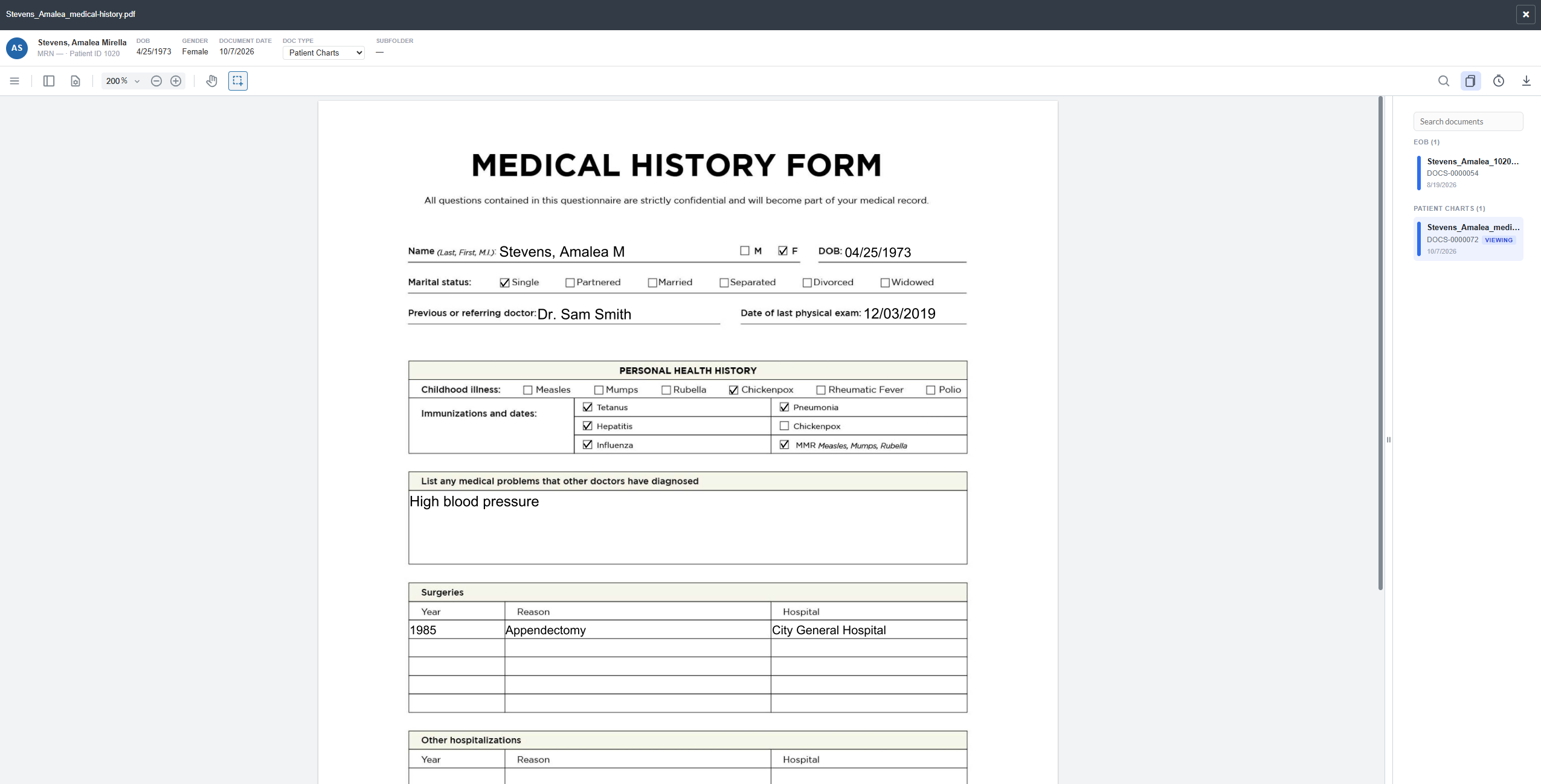
The Document Viewer opens in a new browser tab and shows the document along with the patient's identifying information.
On the Documents tab, click the document's name or View.
Review the patient header at the top of the viewer: It shows the patient's Name, MRN, Patient ID, DOB, Gender, Document Date, Doc Type, and Subfolder.
Use the tools from the toolbar.
a. Use Zoom Options to change the magnification.
b. Click the hand button to pan, or the selection button to select text.
c. Click Search on the right side of the toolbar to find text in the document.Open the Related panel documents button on the right side of the toolbar to show or hide the patient's other documents. The panel groups documents by type and marks the one you're viewing VIEWING.
a. Type in the Search documents box to filter the panel by name or type.
b. Click a document to open it in the same viewer.Click Document History to see this document's views, downloads, and changes.
Click Download to save a copy to your computer.
Click Close in the upper-right corner to close the viewer.
Your administrator decides which viewer features are available to your organization, including printing, downloading, text selection and copying, search, page thumbnails, and the related documents panel. If you don't see a button described here, it has been turned off.
🔍 Troubleshooting Note: If the viewer shows Unable to load this document, click Retry. If the file type can't be displayed in the browser, download the document to open it on your computer. If the viewer shows This document was removed., another user removed the document from the patient's record.
Changing a Document's Type
Correct a document's type from the Document Viewer.
Open the document in the Document Viewer.
In the patient header, select the new type from the Doc Type menu.
The change saves immediately and appears as a Document type changed entry on the Event History tab. Other users viewing the same document see a message that the type was changed.
🔍 Troubleshooting Note: If Doc Type appears as plain text instead of a menu, you don't have permission to change it. If the type you need isn't in the menu, your administrator must add or enable it in Settings. Contact your administrator for either issue.
Need help?
If you are unable to log in to or if you encounter an issue within the application, please submit a ticket in our Support Portal.