Reviewing Event History
The Event History tab is a permanent record of every change and document action for the patient. New events appear automatically without refreshing the page.
Click the Event History tab.
Filter the list using the menus above the table:
a. Select an event type from the All event types menu.
b. Select a user from the All users menu.
c. Select a time period from the date range menu: last 7, 30, or 90 days, or all time. The default is Last 30 days.Review the events.
Field / Column
Description
Timestamp
The date and time of the event.
Event Type
One of: Field updated, Sync overwrite, Document viewed, Document downloaded, Document uploaded, Document removed, or Document type changed.
Field / Document
The field that changed, or the document involved.
Previous Value
The value before the change. Shows — when there was no previous value or the event isn't a change.
New Value
The value after the change.
Performed By
The email address of the user who performed the action.
Source
How the event happened, such as Manual edit, Manual view, or Manual download.
Click Previous or Next to move between pages.
Click Export log to download the filtered events as a CSV file.
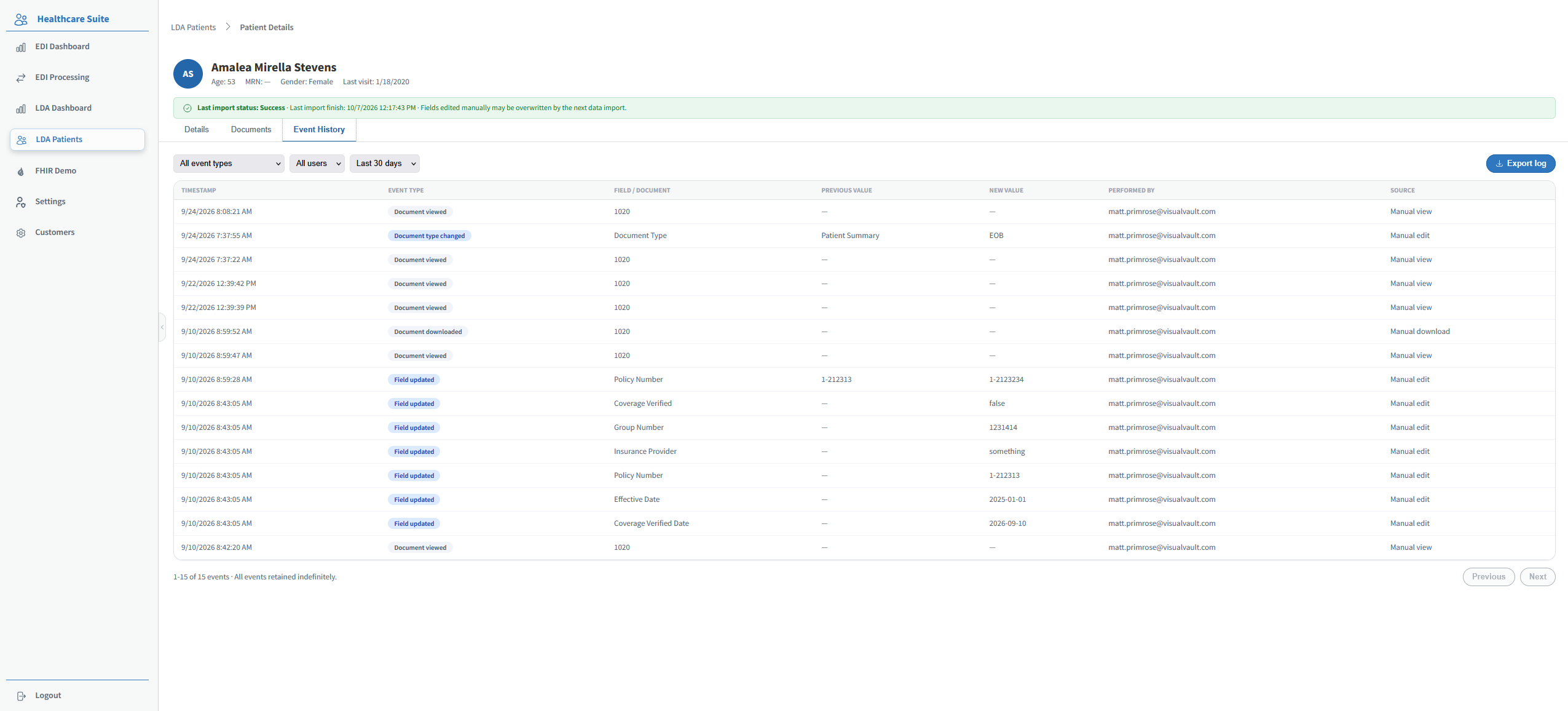
Events are never deleted. The note below the table reads "All events retained indefinitely."
🔍 Troubleshooting Note: If an event you expect doesn't appear, check the filters, especially the date range, which defaults to Last 30 days. Select All time to see the full history.
Need help?
If you are unable to log in to or if you encounter an issue within the application, please submit a ticket in our Support Portal.