The Settings screen enables administrators to maintain and configure the HR Governance (HRG) application to match their organization's needs. It provides a single location for managing who can access application resources, defining the document types in use, and adjusting application-level display and search settings. Administrators can access three configurable categories: Role and Permissions, Document Types, and Configuration.
HR Admins in your organization will oversee Settings. VisualVault and HRG function together to provide robust settings.
Capability | VisualVault | HR Governance |
|---|---|---|
Add/Remove Users | ✓ | − |
Manage User Groups | ✓ | − |
Folder-level access control | ✓ | − |
Manage index fields | ✓ | ✓ |
Document-level access control | ✓ | ✓ |
Screen-level access control | − | ✓ |
Feature-level access control | − | ✓ |
Sync Users | − | ✓ |
Manage Roles | − | ✓ |
Organize Departments | − | ✓ |
Navigating to Settings
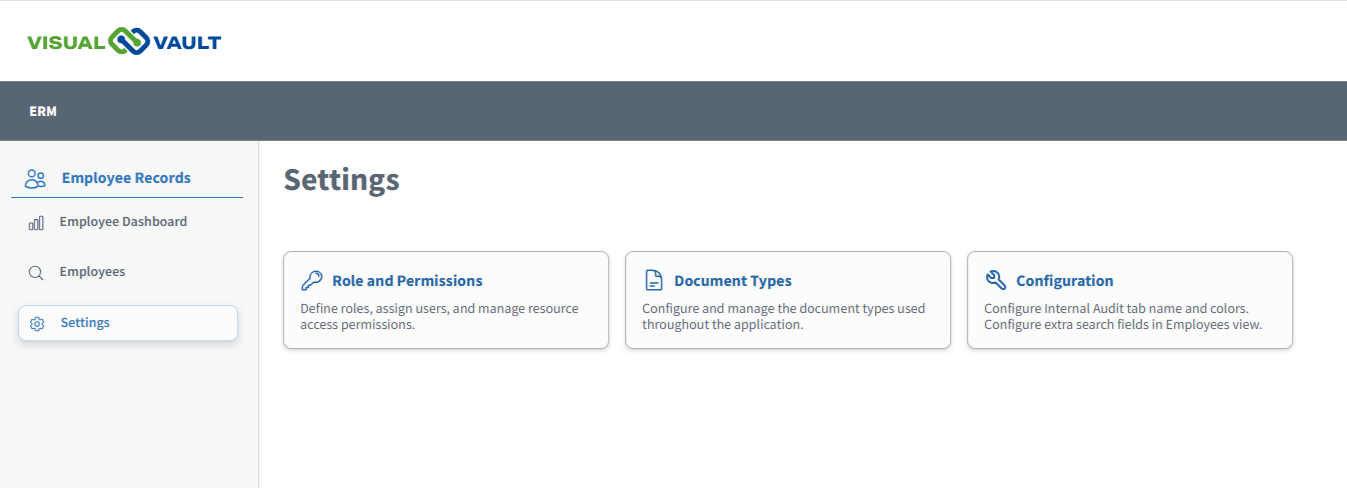
Log in to VisualVault and navigate to the HRG application to access the Settings screen.
Log in to your VisualVault account.
Navigate to the HR Governance application.
Click Settings in the left navigation panel.
When you arrive, the Settings screen displays three configuration cards: Role and Permissions, Document Types, and Configuration.
🔍 Troubleshooting Note: If Settings does not appear in the left navigation panel, your account has not been assigned the Administrator role. Contact your administrator to request access.