Users can be added to or removed from groups in two different locations:
- Through the User Administration interface.
- Through Group Administration interface.
Add User to Groups via User Administration
A good example of when to administer groups here is when a user should be added/removed from multiple groups.
To add users:
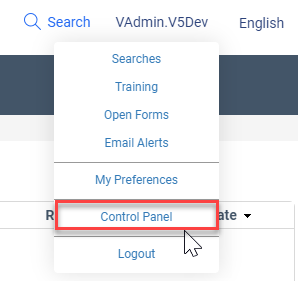
- Hover over the user information in the upper right-hand corner of the window and select Control Panel.
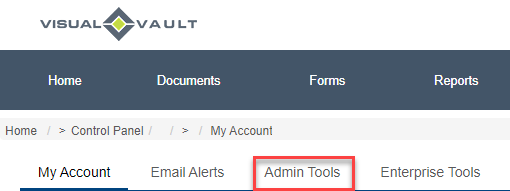
- Select the Admin Tools tab.
- Select Users.
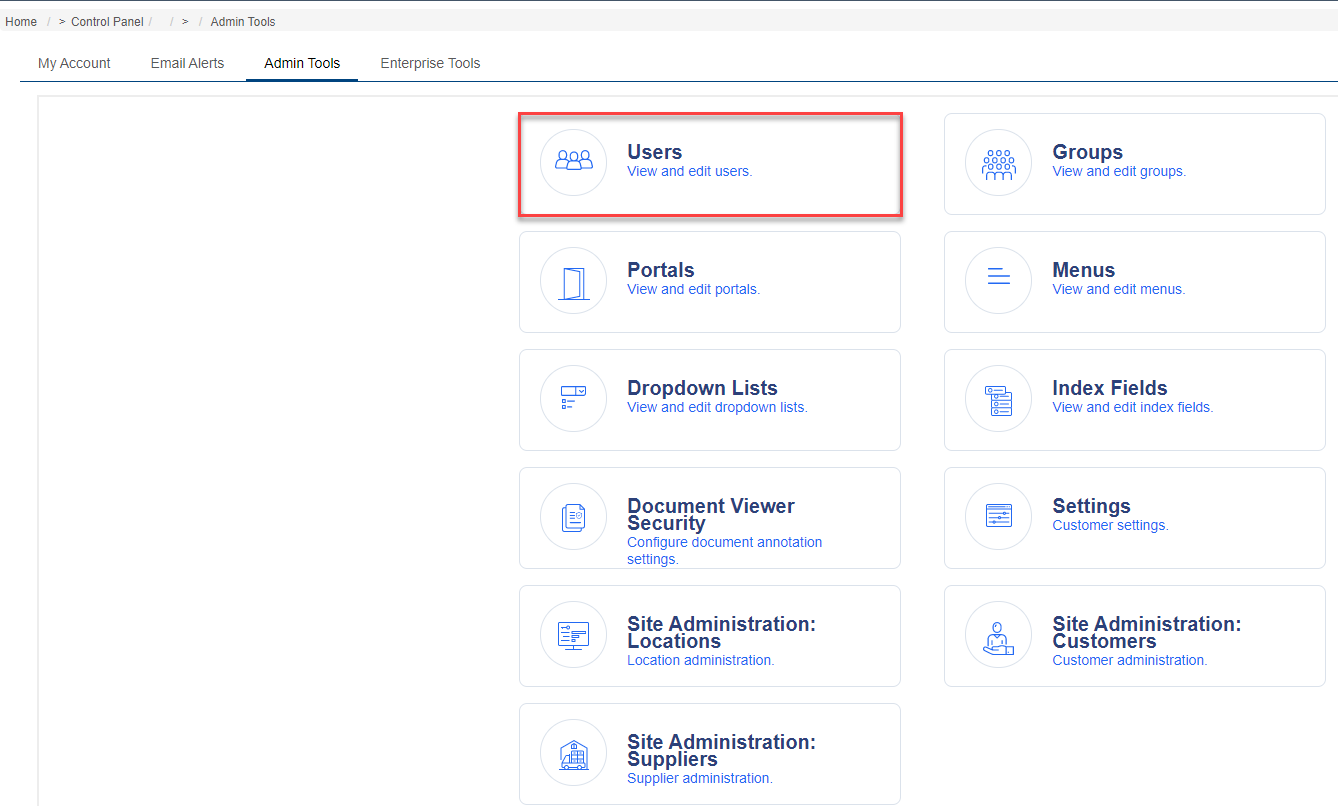
- Select the User ID of the user who should be added to groups.
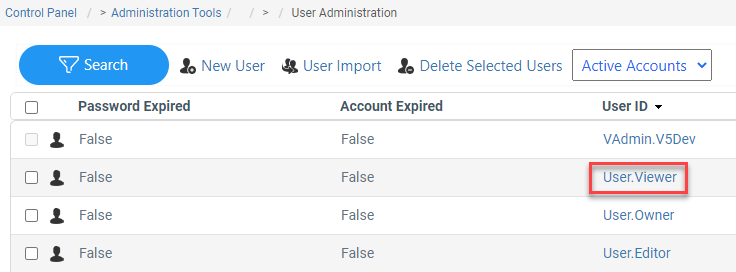
- When the User ID Card opens, select the Groups tab.
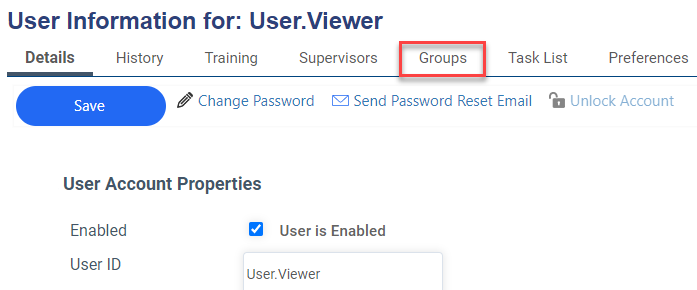
- Use the Modify Groups button.
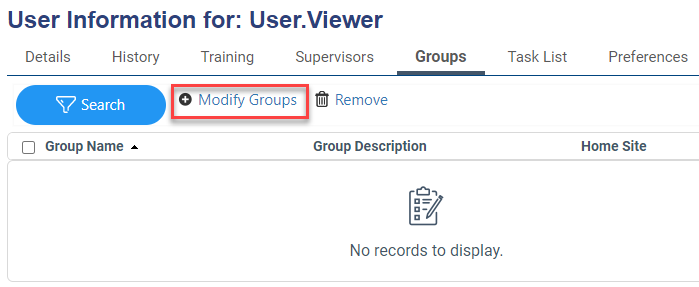
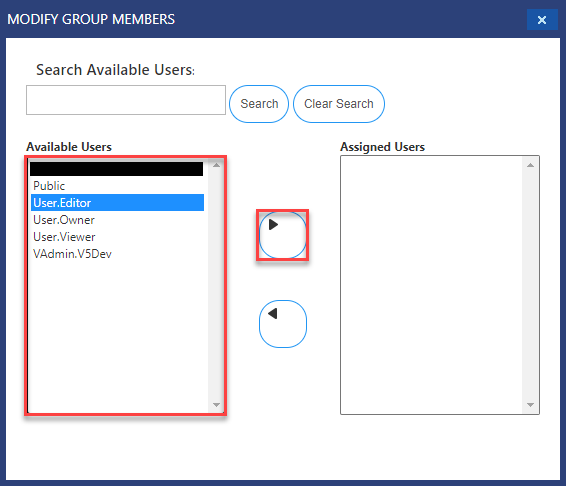
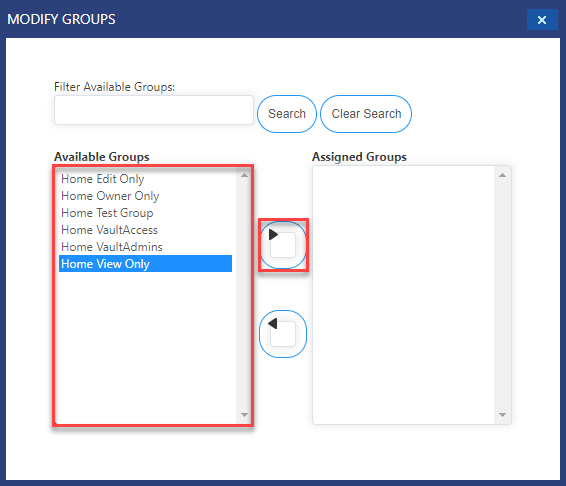
- In the window that appears, select the desired group(s) and use the right-facing arrow to associate the group with the user.
- NOTE:It is possible to select more than one group by completing one of the following:
- Hold CTRL and use the mouse to select multiple groups.
- If multiple groups in order need to be selected, click the first desired group, then use CTRL+SHIFT and use the mouse to select the last group.
- This will highlight all groups in between the first and last selected group.
- NOTE:It is possible to select more than one group by completing one of the following:
Add User to Groups via Group Administration
A good example of when to administer groups here is when more than one user should be added/removed from the same group.
To add users to groups:
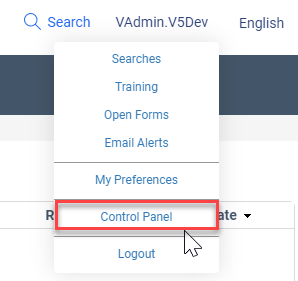
- Hover over the user information in the upper right-hand corner of the window and select Control Panel.
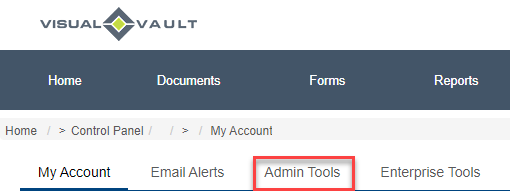
- Select the Admin Tools tab.
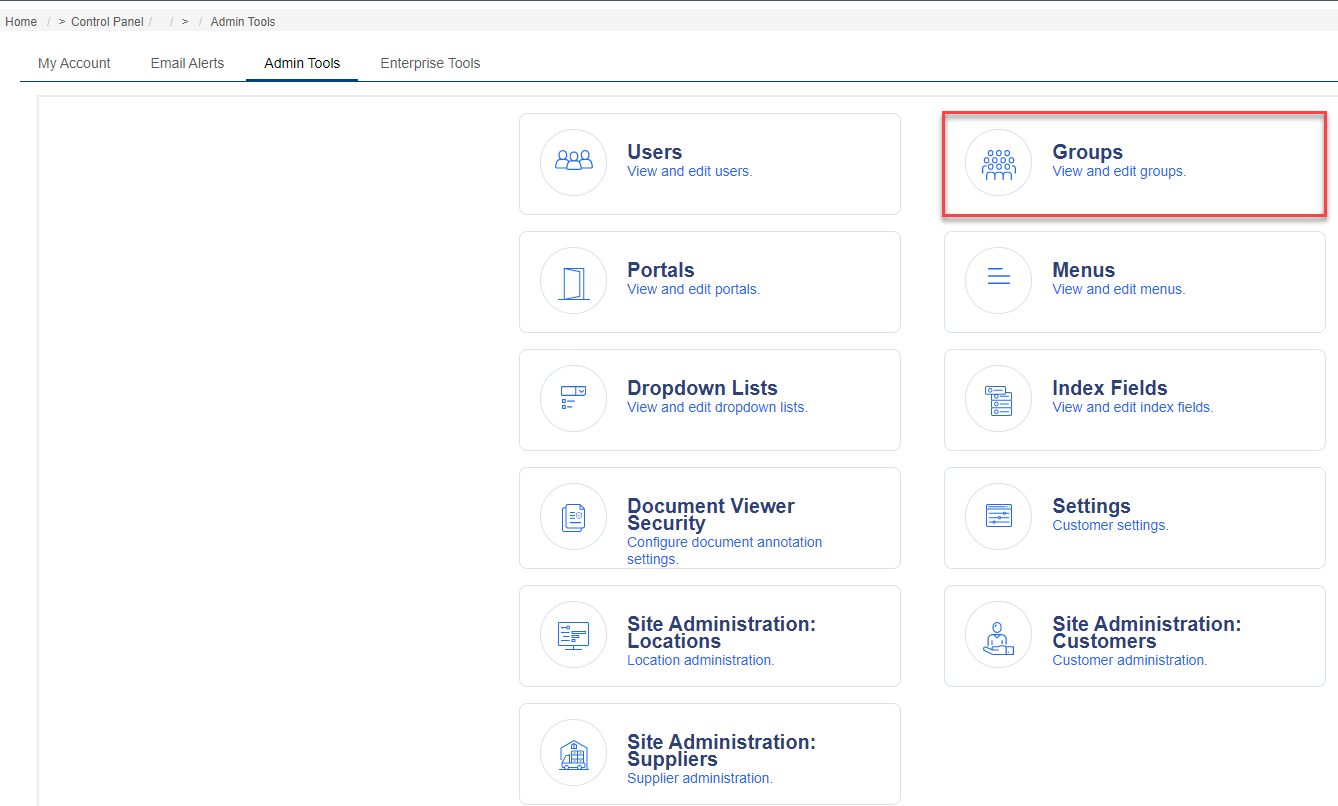
- Select Groups.
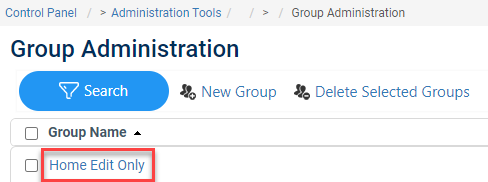
- Select the desired group name to open the list of users.
- Select the Modify Users button.
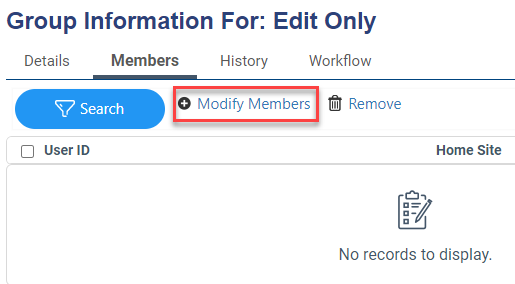
- In the window that appears, select the desired user(s) from the Available Users section and use the right-facing arrow to add the user(s) to the group.